
Verify Revenue – App Store Connect
Verify iOS app metrics and revenue directly via App Store Connect.
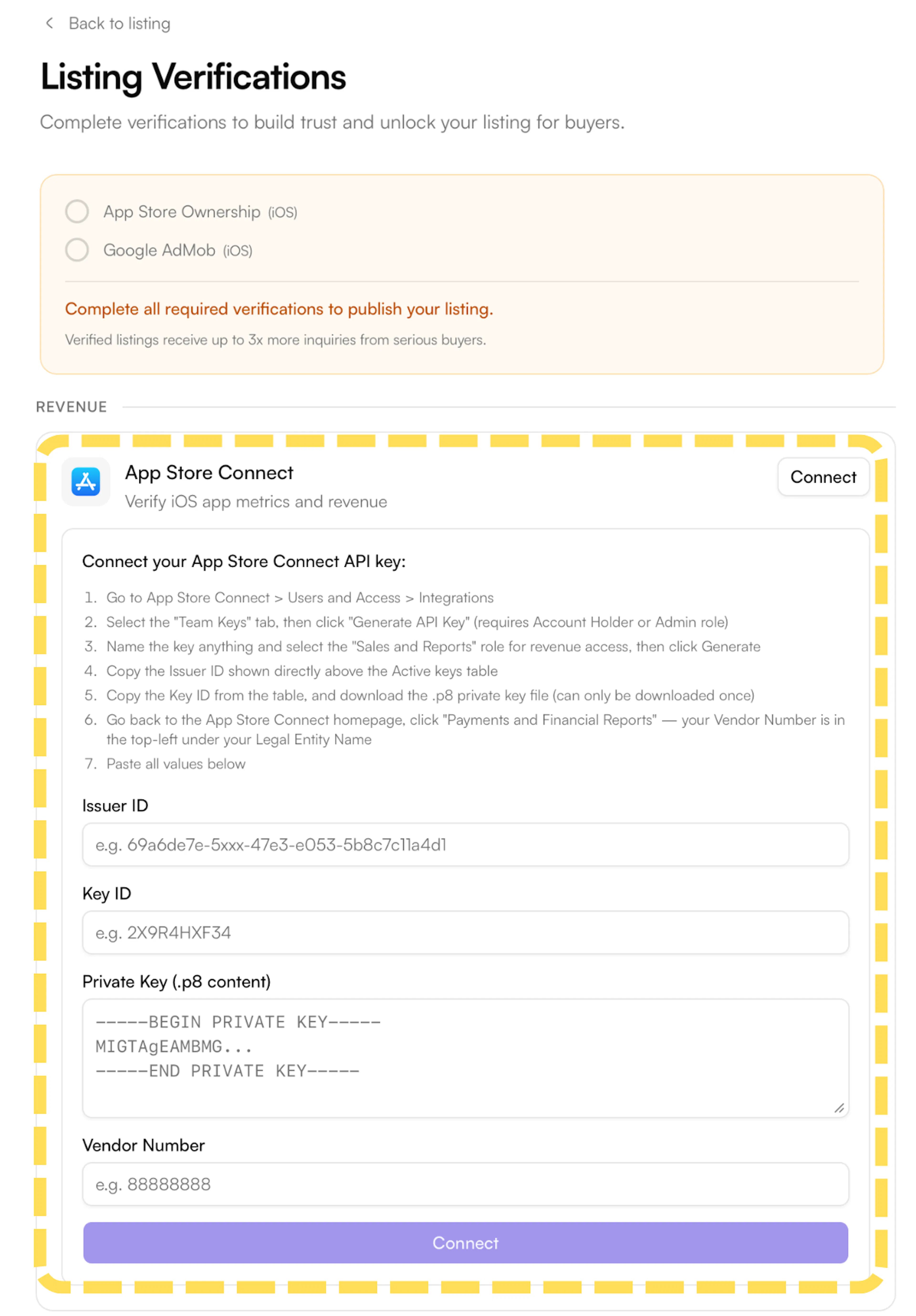
- On the Listing Verifications page, find App Store Connect under the Revenue section and click Connect. A panel will expand with the steps and input fields.
- Go to App Store Connect and click Users and Access in the top navigation. Open the Integrations tab, then select App Store Connect API under Keys.
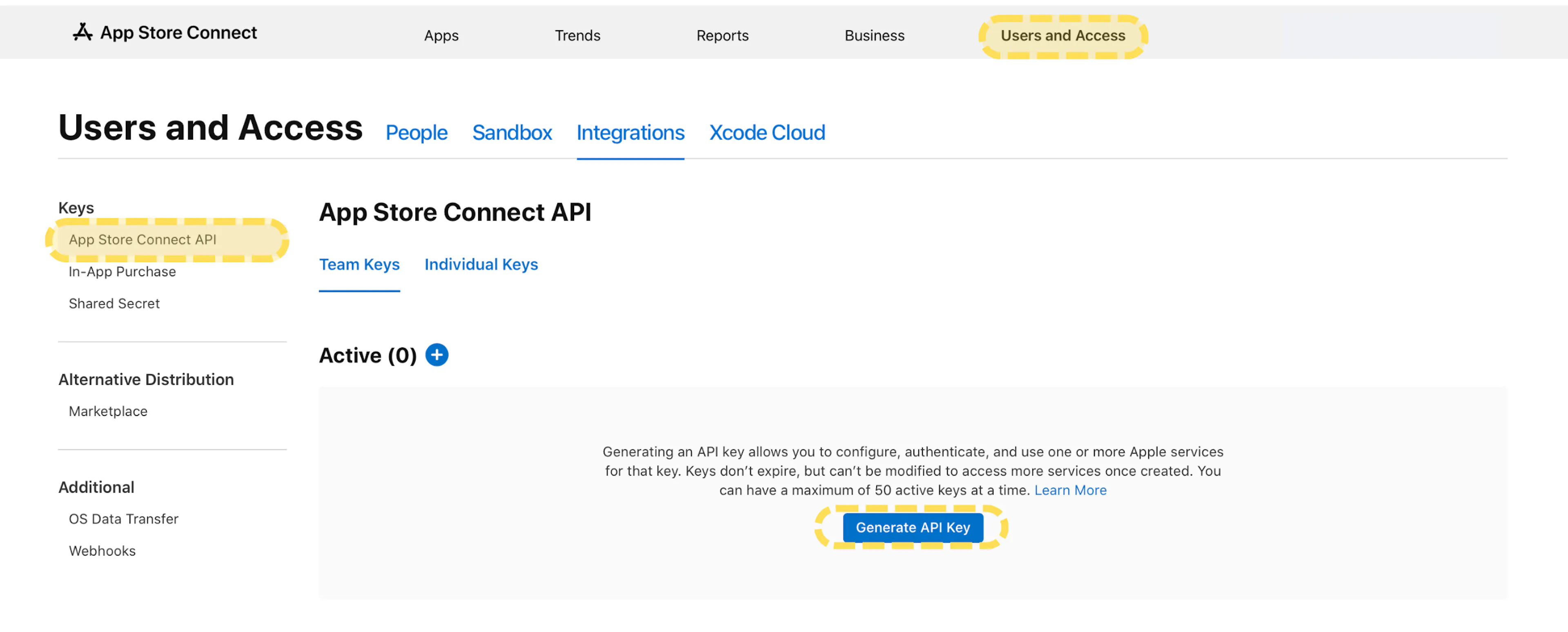
Generating API keys requires an Account Holder or Admin role in App Store Connect.
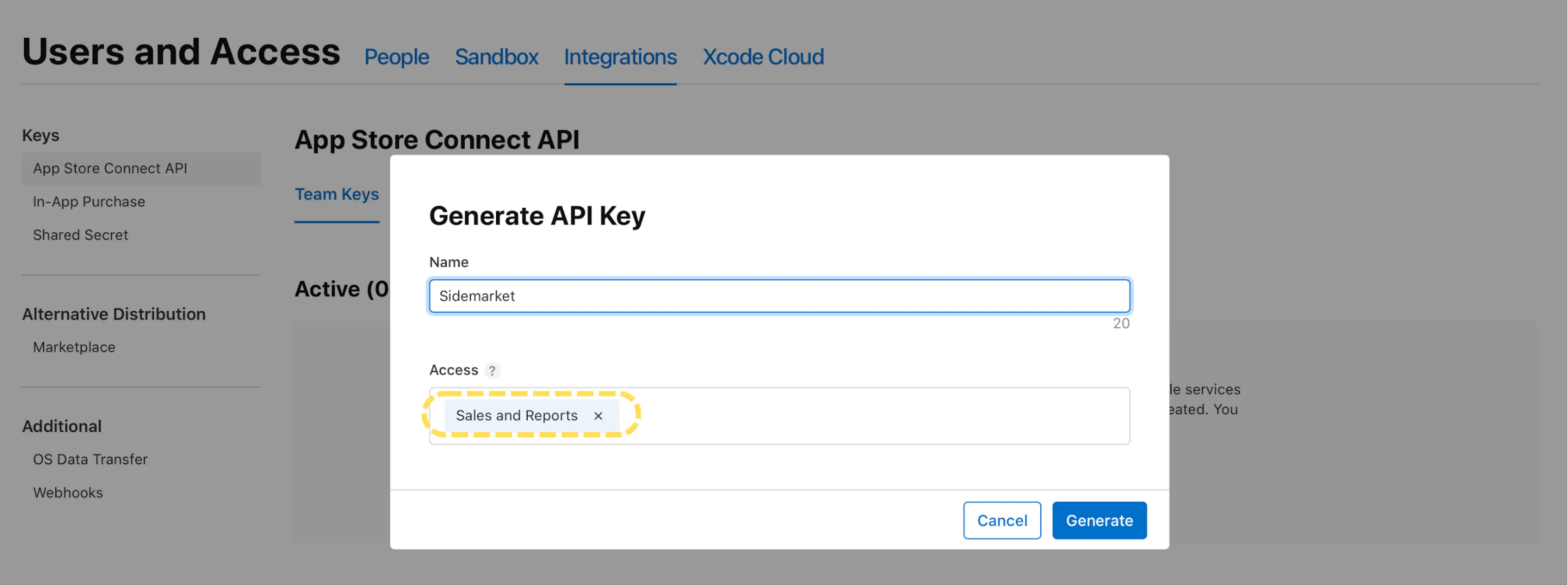
- Select the Team Keys tab and click Generate API Key. Give the key a name (e.g. Sidemarket) and set the Access to Sales and Reports. Click Generate.
- Copy the Issuer ID shown above the Active keys table. Then from the table, copy the Key ID and click Download to download the
.p8private key file.
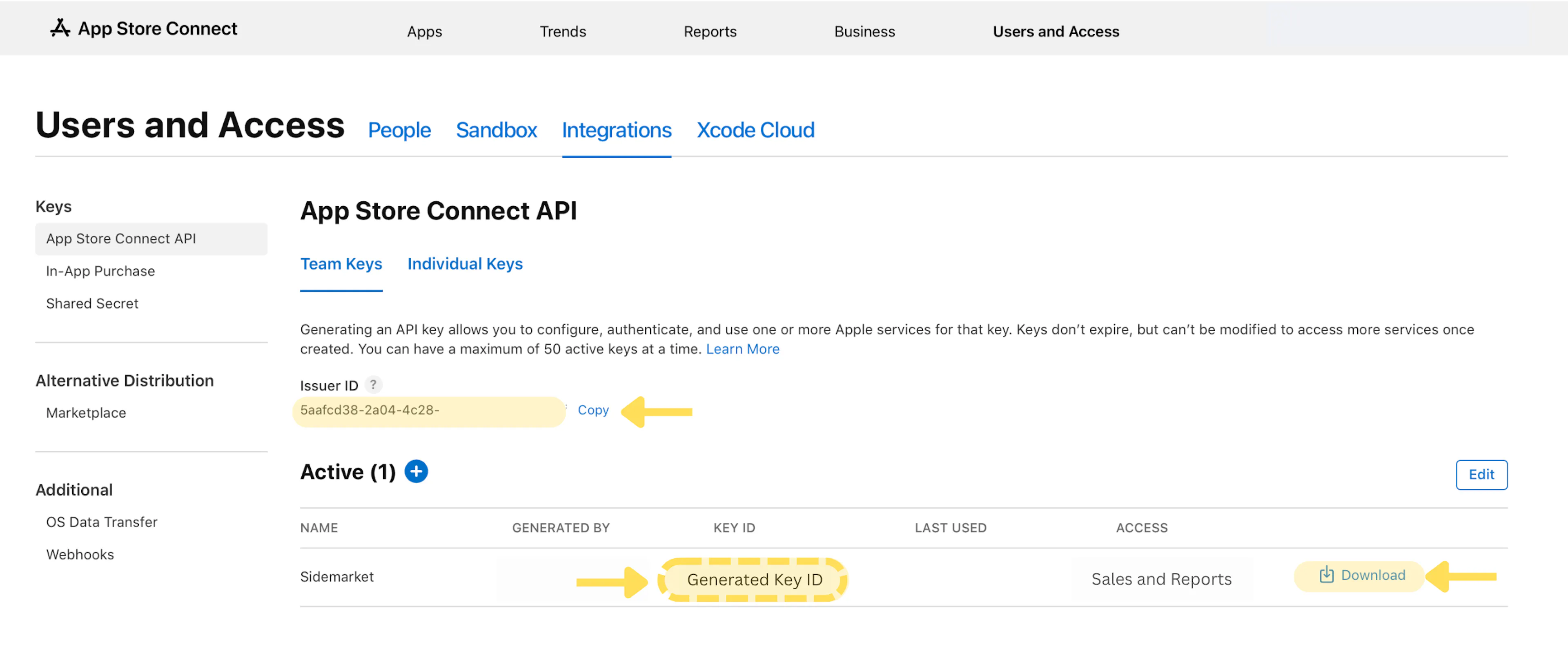
The .p8 file can only be downloaded once.
-
Open the downloaded
.p8file with a text editor and copy the full contents - you'll paste this as the Private Key in SideMarket. -
Go back to the App Store Connect homepage and click Payments and Financial Reports. Your Vendor Number is shown in the top-left corner below your Legal Entity Name.

-
Return to SideMarket and fill in all four fields:
-
Issuer ID
-
Key ID
-
Private Key - paste the contents of the
.p8file -
Vendor Number
Click Verify & Connect to complete the verification.
-
-
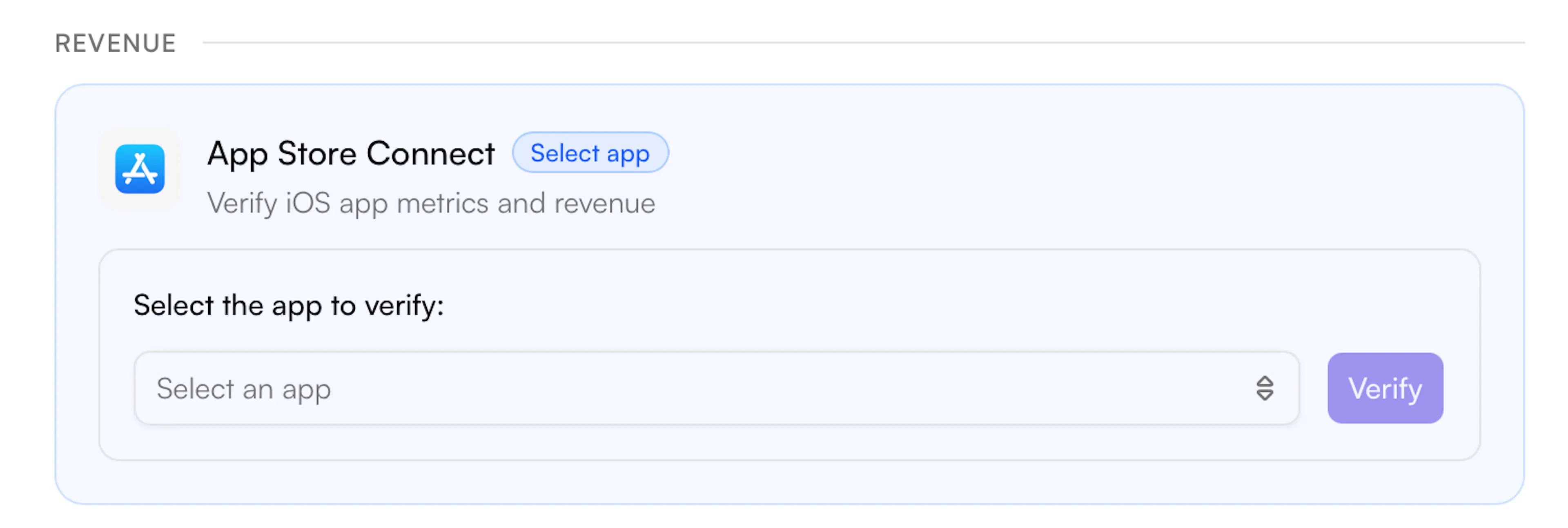
Once connected, you'll see a dropdown to Select the app to verify. Choose your app from the list and click Verify.